
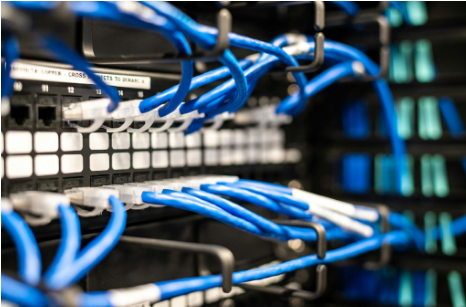
Setting up a new router in your home doesn’t have to be overwhelming, especially if you’re moving into a fresh space or upgrading from basic ISP gear. Start by unboxing everything: modem, router, power adapters, and Ethernet cables. Place the router centrally, away from walls or microwaves that could block signals—aim for elevated spots like a shelf for even Wi-Fi coverage.
Power on the modem first and wait for its lights to stabilize (usually 2-3 minutes), then connect it to the router. Use the included quick-start guide or app to access the admin panel via a browser (often at 192.168.1.1). Set a strong Wi-Fi password, enable WPA3 security, and update firmware right away to patch vulnerabilities.
For wired devices like desktops or smart TVs, grab Ethernet cables next. Most routers have multiple ports for local connections, but double-check your modem-router link to avoid hiccups. Test speeds on speedtest.net from multiple rooms—if it’s spotty, reposition or add extenders.
Pro tip: Label cables during setup to prevent future confusion. New homeowners often overlook this, leading to hours of trial-and-error later.
Quick Setup Checklist:
- Modem on → Router plugged in.
- Admin login → Wi-Fi/Security configured.
- Speed test → Adjust placement.
For port-specific guidance like modem connections and avoiding mix-ups, see this handy breakdown.
Home Network Content
Best Routers for Streaming in 2026
Streaming 4K movies or gaming online demands routers that handle high bandwidth without buffering. In 2026, top picks include the TP-Link Archer AXE11000 for its tri-band Wi-Fi 6E (up to 11 Gbps) and eight antennas for 5,000 sq ft coverage. Budget-friendly? The Asus RT-AX58U offers solid 3,000 sq Mbps at under $150.
Key features to prioritize: MU-MIMO for multiple devices, QoS settings to favor Netflix over emails, and beamforming to push signals to your couch. Mesh systems like Eero Pro 6 shine in big homes, auto-optimizing nodes via app.
Setup is straightforward—plug in, app-scan QR code, done in 10 minutes. But wired backhaul (Ethernet between nodes) boosts reliability for heavy use. Check reviews on sites like PCMag for real-user latency tests.
Top Picks Comparison:
| Router | Speed | Coverage | Price |
| TP-Link AXE11000 | 11 Gbps | 5,000 sq ft | $400 |
| Asus RT-AX58U | 3 Gbps | 3,000 sq ft | $130 |
| Eero Pro 6 | 1 Gbps/node | Expandable | $200/set |
Ensure proper port setup using this detailed port guide to maximize performance.
Wi-Fi Router Placement Tips
Poor router placement kills your internet—signals weaken through walls or metal. Ideal spots: hallway centers, 3-5 ft high, clear of aquariums or cordless phones (2.4GHz interference). Avoid floors, cabinets, or near baby monitors.
Test with apps like WiFi Analyzer: walk around noting signal strength (aim for -50 dBm or better). Multi-floor? Elevate on a stand or use ceiling mounts. Outdoors? Weatherproof enclosures help for coverage extensions.
Advanced: Channel selection—use 5GHz for speed (channels 36-48), 2.4GHz for range. Enable band steering to auto-switch devices.
Placement Do’s and Don’ts:
- Do: Central, elevated, ventilated.
- Don’t: Corners, microwaves, aquariums.
Pair with correct cabling info from this port reference for optimal wired boosts.
Building a Fast Home Network from Scratch
Start with your ISP speed—gigabit plans need Cat6 cables minimum. Connect modem to router, then fan out to switches for 10+ devices. Prioritize: gaming PC wired, IoT on guest network.
Security first: Unique SSID/password, disable WPS, guest Wi-Fi isolated. Tools like Fing app scan for intruders.
Scale with Powerline adapters through walls or MoCA over coax if no Ethernet.
Layered Network Build:
- Core: Modem-router backbone.
- Access: Switches/extenders.
- Secure: VLANs for guests.
Dive into port differences via this clear resource.
Beginner Networking Content
Ethernet vs Wi-Fi: When to Use Each
Wi-Fi is convenient (no cables!), hitting 1-2 Gbps on Wi-Fi 6, but walls drop it 50%. Ethernet? Rock-solid 1-10 Gbps, zero latency for gaming/NAS.
Use Wi-Fi for mobiles/laptops; Ethernet for desktops, servers, 4K TVs. Hybrid: Wire backbone, Wi-Fi endpoints.
Speed Test Example: Ethernet: 950 Mbps. Wi-Fi: 600 Mbps (same room).
For wired port clarity, check this essential comparison.
Secure Your Router in 5 Steps
- Change default admin password.
- Update firmware monthly.
- Enable firewall, disable remote access.
- WPA3 + MAC filtering.
- Monitor logs for odd traffic.
Use VPNs like ExpressVPN for public Wi-Fi. Tools: Router manufacturer’s app.
Start with proper port connections using this quick guide.
Router Basics Every Homeowner Needs
Modems convert ISP signals; routers distribute locally. DHCP auto-assigns IPs. Double NAT? Bridge your modem.
Daily: Restart monthly. Apps simplify reboots.
Ports explained simply in this top reference.
Troubleshoot Slow Internet at Home
Steps: Restart modem-router (30s unplug). Check cables. Run speedtest. Flush DNS (ipconfig /flushdns). Limit devices.
ISP outage? DownDetector. Overloaded? QoS prioritize.
Verify port wiring with this detailed overview.
Upgrade Your Old Router Easily
Signs: <100 Mbps Wi-Fi, no WPA3, frequent drops. Backup settings, clone MAC if needed, transfer cables.
New perks: Wi-Fi 6/7, USB sharing.
Match new ports correctly via this port explainer.
Mesh Wi-Fi Systems: Setup Guide
Main node to modem, satellites 30-50 ft apart. App auto-configures; wired backhaul optional.
TrueMesh avoids dead zones. Budget: $150-500.
Handle main router ports right with this useful link.